

A scratchpad for text between apps
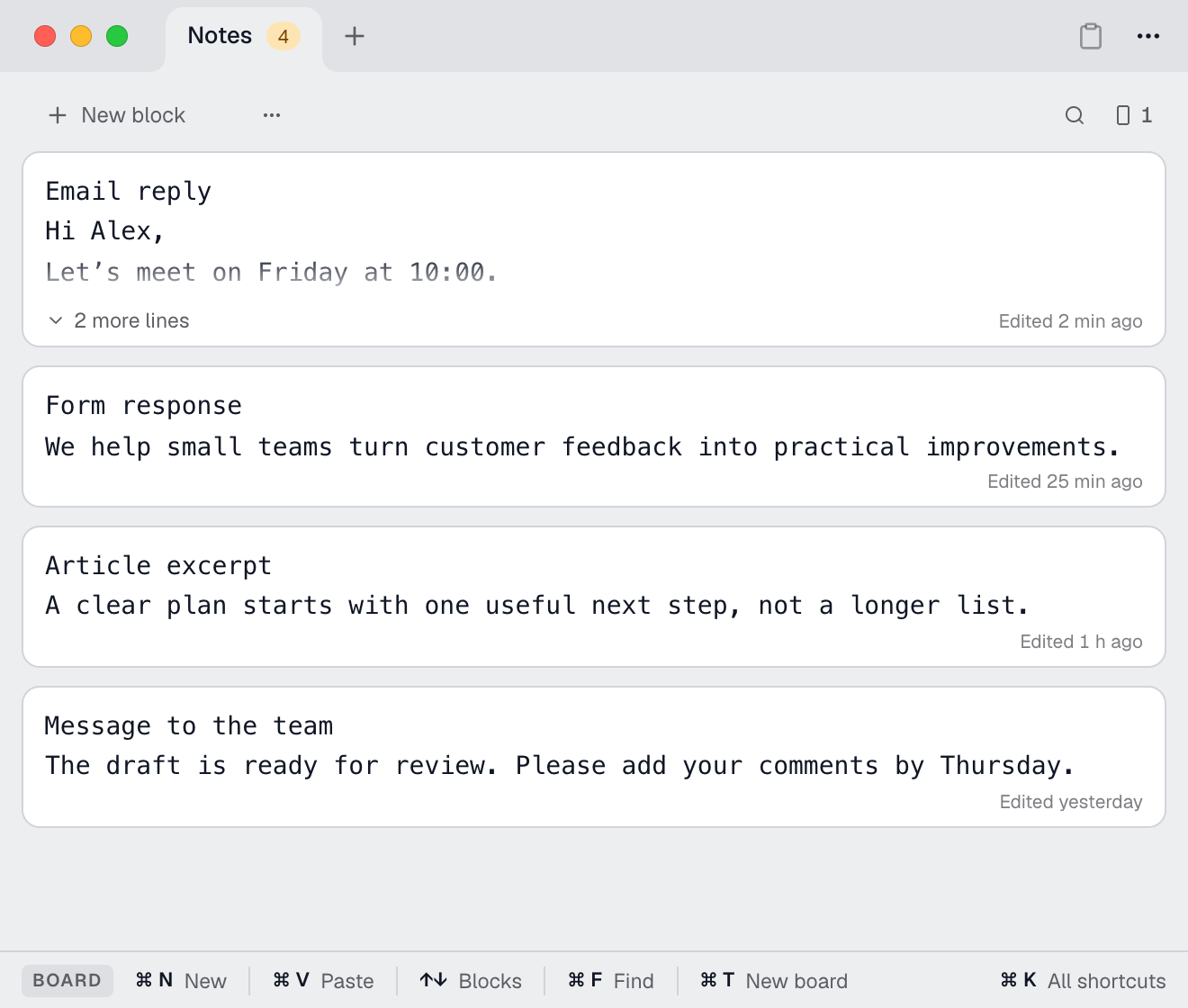
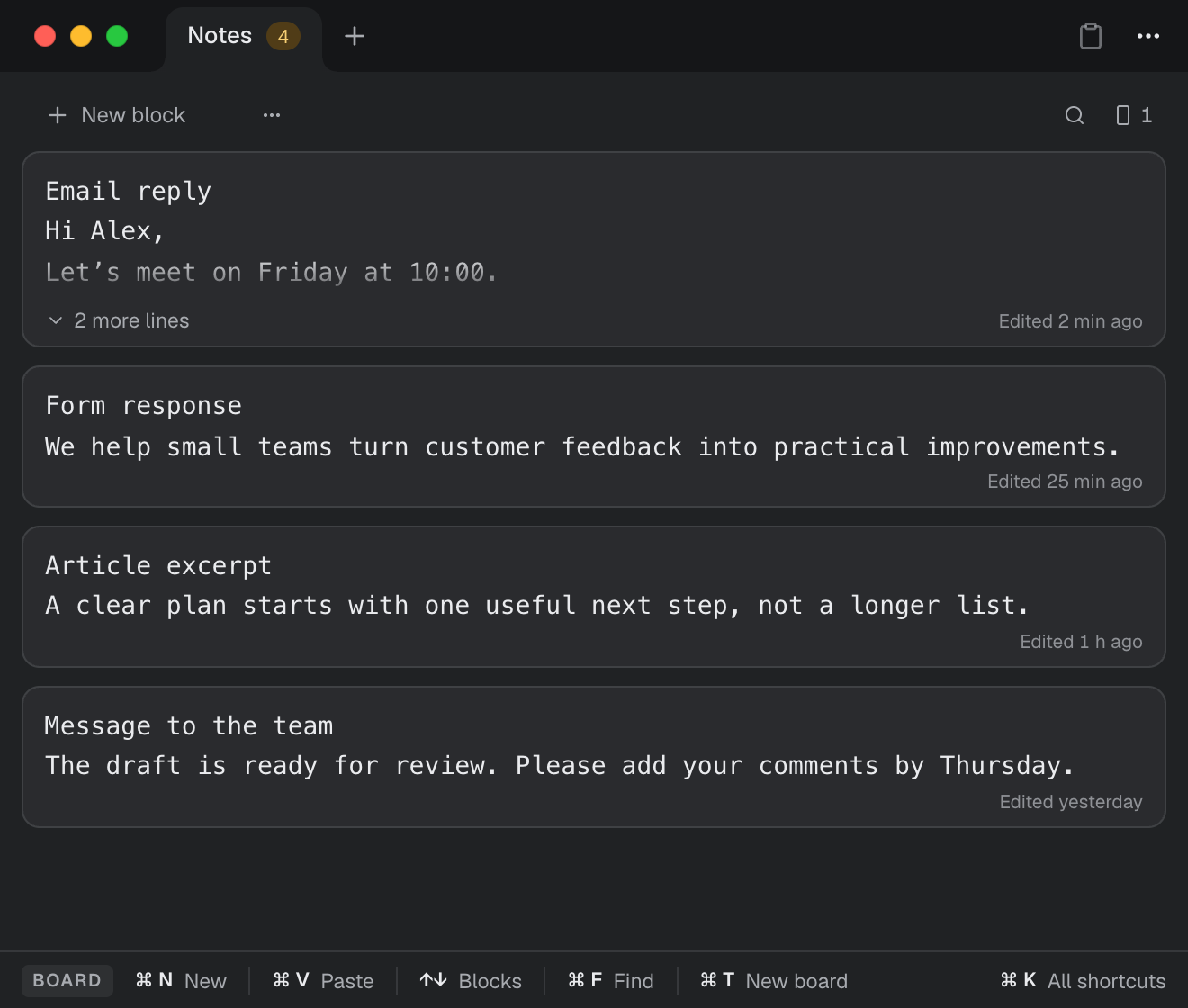
Paste anything and it arrives as plain text, without formatting or unwanted invisible characters. Edit it in a quiet window, then copy it back where you need it.

macOS 13 Ventura or later · One-time purchase, no subscription · Support
Why we made it
We move text between emails, documents, forms and code all day. For years our workaround was an unsaved editor tab, kept open just to strip formatting and park snippets. Unrich is the small tool we wanted instead, and we use it every day.
Copy it in. Edit it. Copy it back.
Copy it in
Press ⌥ Space from any app and paste with ⌘ V.
Edit it
Rework it right there, or focus on one note with nothing else in view. Spelling is checked as you type, never corrected for you.
Copy it back
Press ⌘ ↵ and paste it into the email, form or document that needs it.
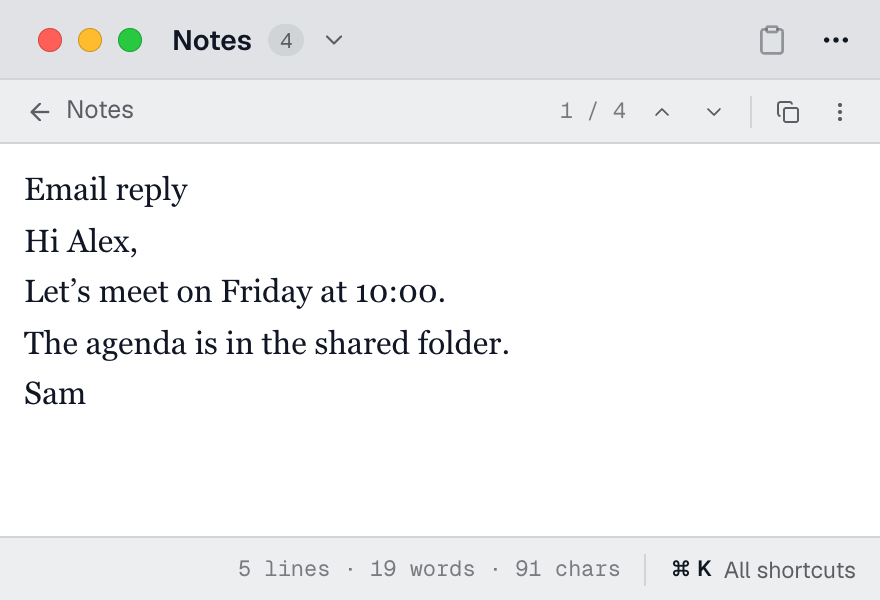
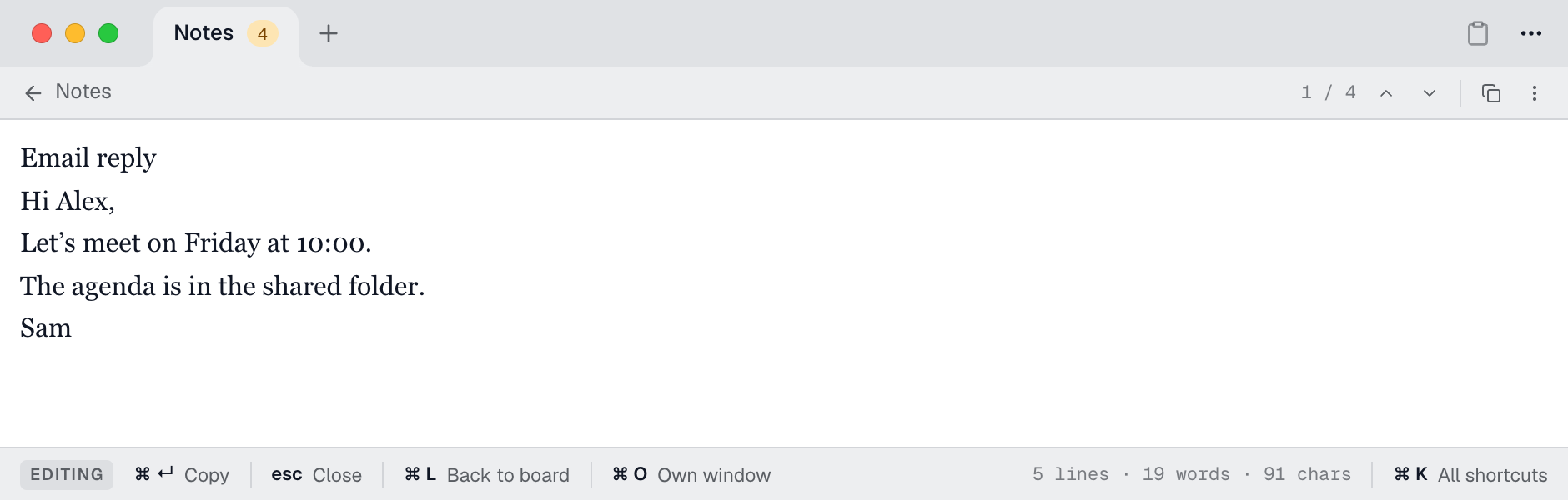
Keep the text. See what changed.
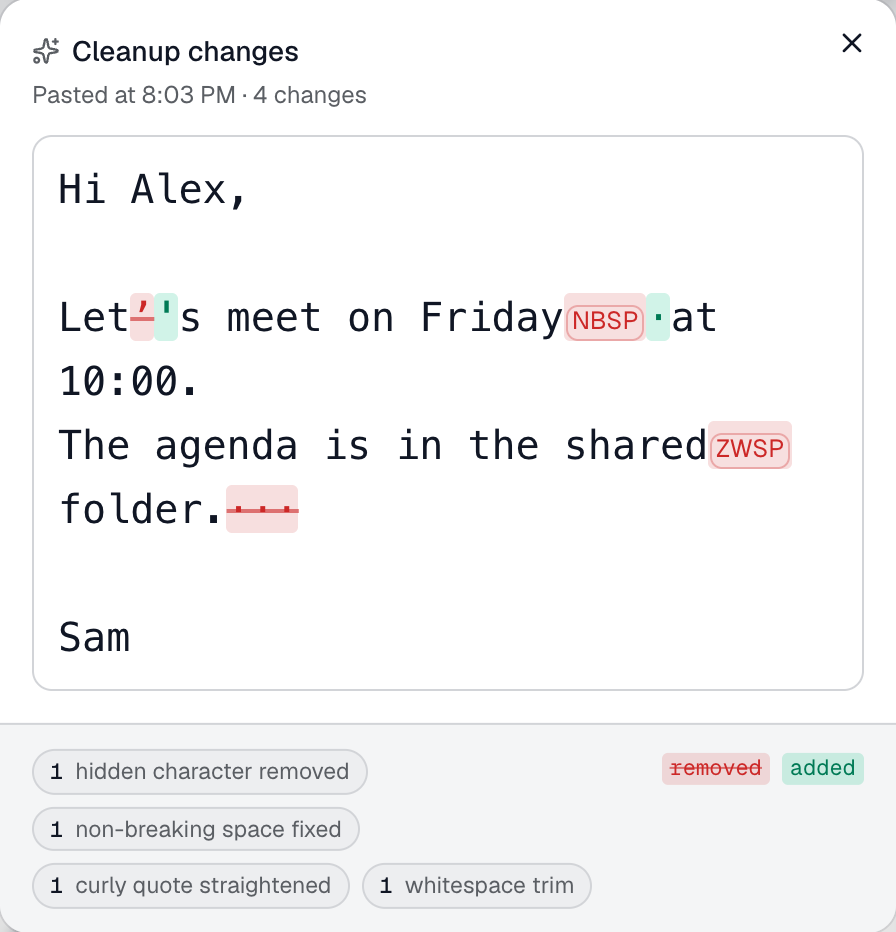
Text from a web page, an email or a PDF brings fonts, colors and invisible characters along. You can't see them, but they break a form, a search or a line of code later.
Unrich keeps the text and drops the rest.
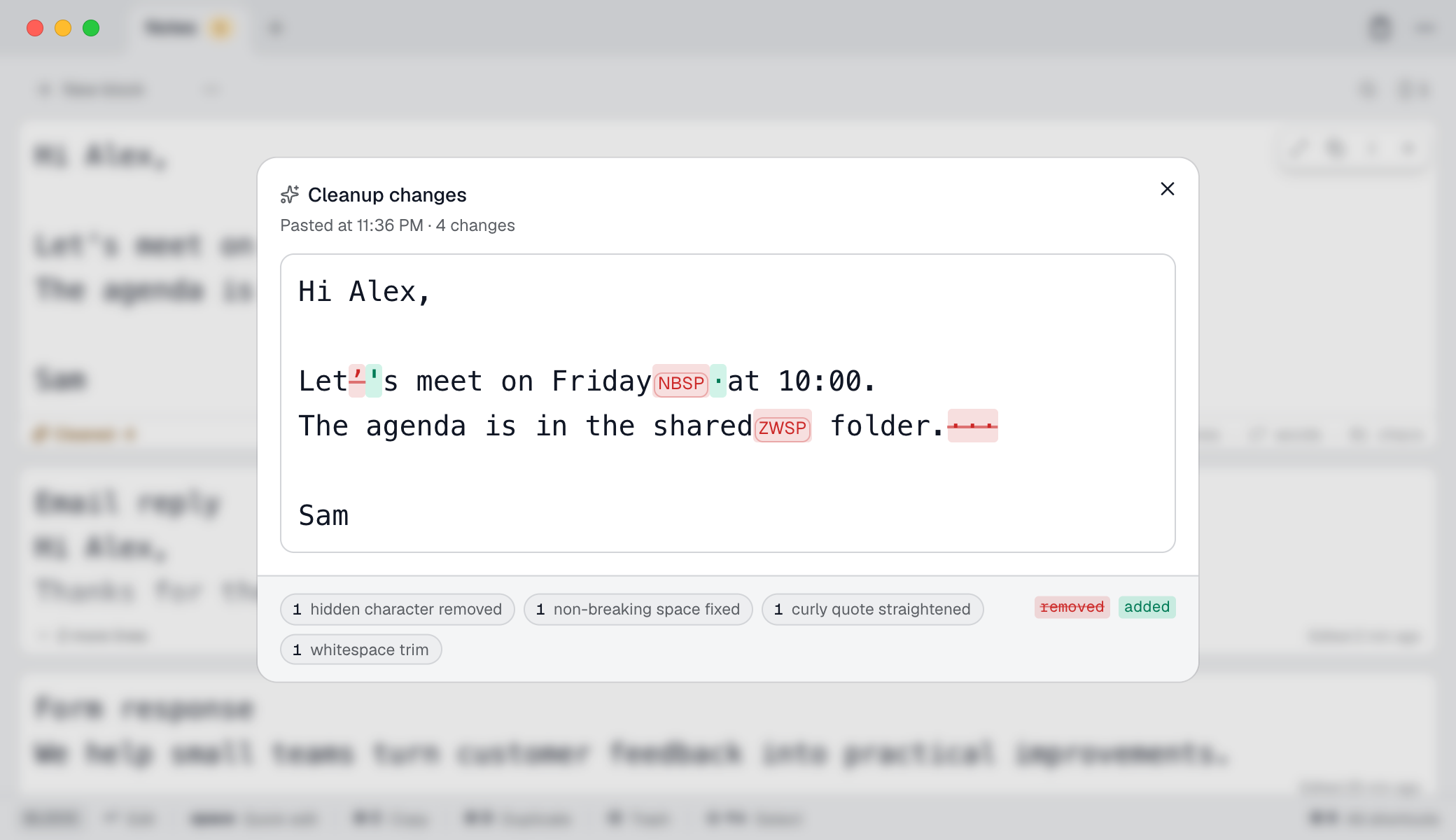
Inspect cleanup changes with invisible characters marked, or copy the original pasted text.
Plain text by default.
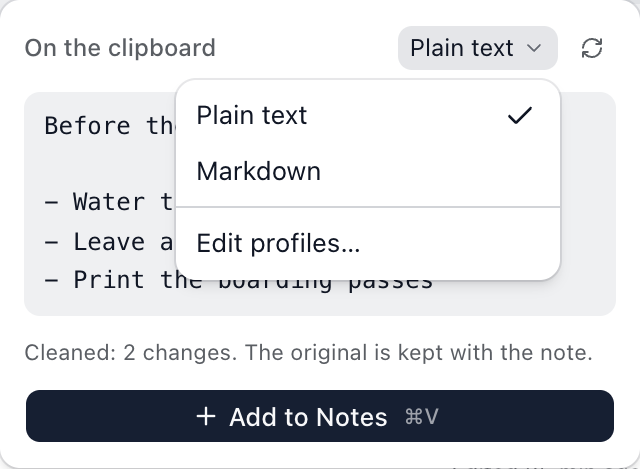
Plain text is the default: paragraphs and lists stay readable, without fonts or colors. Choose Markdown for headings, emphasis, code and links, or make a profile of your own.
Start with a note. Make room for more.
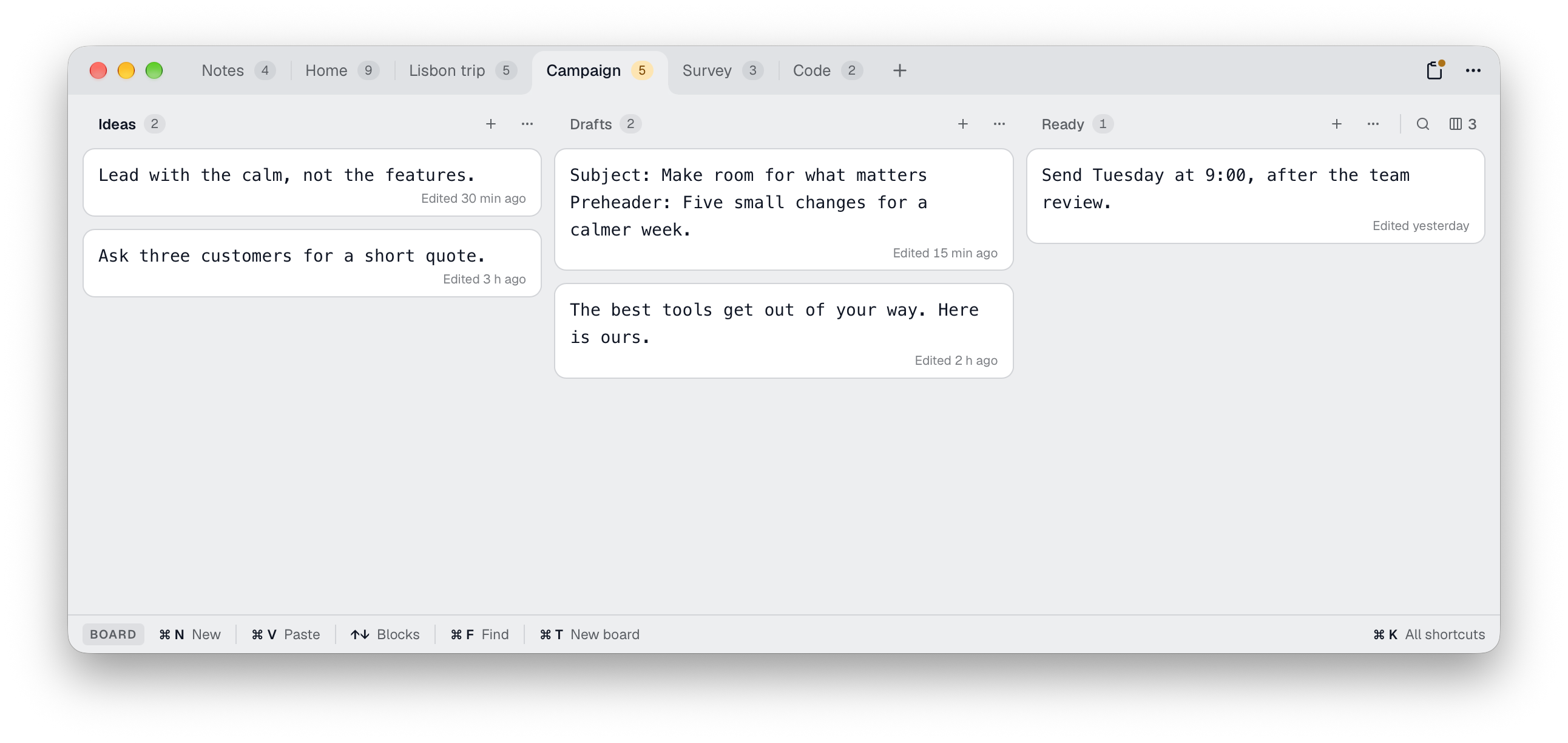
Your notes are saved automatically, with no filenames to choose. Boards and columns are there when one list isn't enough.
Quick capture
Jot a note from the menu bar, or add copied text with ⌥⇧Space.
Search and replace
Search one board or all of them, and review every replacement before it's made.
Keep on Top
Keep a note in its own window above other apps.
Temporary secrets
Keep sensitive text in memory only. Secrets expire automatically.
We never see your notes
There's no account to create, and your notes never pass through a coneno server.
Read the privacy policy- No account
- No clipboard history
- Stored on your Mac
- Works offline
Questions
Is Unrich a clipboard manager?
No. There is no clipboard history. While the main window or Quick Capture has focus, it reads the clipboard to preview what you could add; that preview stays in memory. Text is saved only when you paste, capture or type it. In apps that support macOS Services, you can also select text and choose Services → Capture to Unrich without changing your clipboard.
Where are my notes stored?
In Unrich's own folder on your Mac. They stay through restarts until you clear them. You can back up your notes, boards, Trash and settings to one file and restore them later. Restoring replaces the current data; Unrich saves a safety copy first. Secrets are never included in backups.
Does Unrich read what I type?
No. Unrich doesn't see what you type in other apps, and it never asks for Accessibility or Input Monitoring access.
Will cleanup break my text?
Cleanup removes formatting and unwanted invisible characters, fixes spacing and straightens curly quotes; line endings are always made consistent. Emoji and scripts that rely on joining characters stay intact. You can inspect what changed, copy the original pasted text, or undo. To switch individual rules off, make a profile of your own.
Plain text or Markdown?
Plain text, the default, keeps paragraphs and lists readable and writes a link as its visible text, so no addresses hide behind words. Markdown also writes out headings, emphasis, code and link addresses. Make your own profile to mix the rules; the clipboard preview shows the result before you add it.
Support
Questions or feedback about Unrich? We'd love to hear from you.
support@coneno.comUnrich Privacy PolicyPress kitPlain text, one shortcut away.
macOS 13 Ventura or later
Apple, the Apple logo, Mac and macOS are trademarks of Apple Inc., registered in the U.S. and other countries and regions. App Store and Mac App Store are service marks of Apple Inc.